Booking a meeting
This page is for people who received a booking link, such as https://meet.example.com/jane or https://meet.example.com/jane/intro-call. No account or app is needed.
Booking
- Pick a meeting if the page lists more than one, such as 30 min intro.
- Pick a day. Days with free times are highlighted; use ‹ › to change month.
- Pick a time. Times are shown in your timezone, which is named under the calendar.
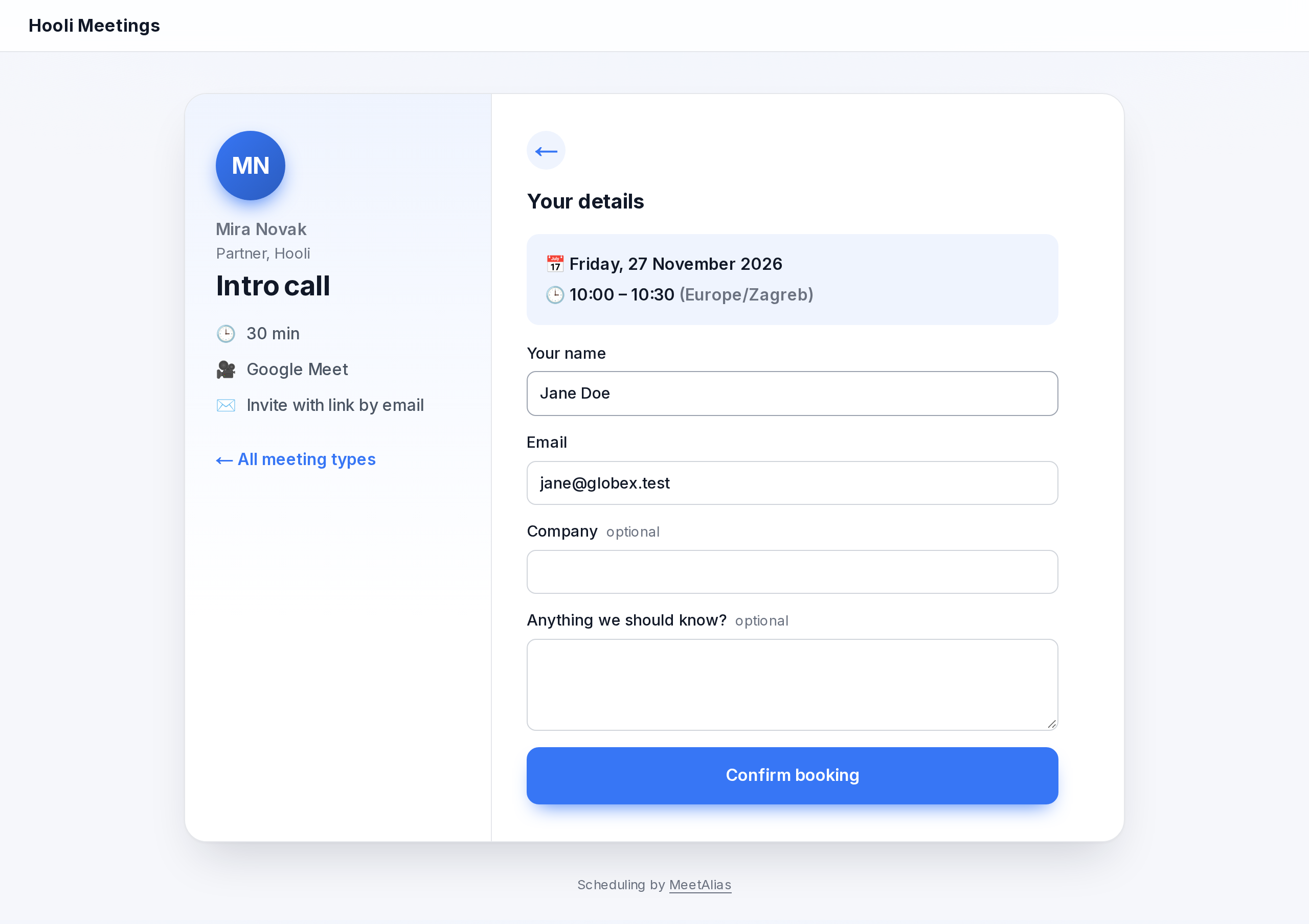
- Enter your details: name, email, optionally your company, and anything the host should know.
- Choose Confirm booking.
- Check your email. You'll get a Confirm your booking email with a link. Open it and choose Confirm booking again. The time is held for you for 30 minutes; if you're later, the link still works as long as nobody else has taken the time.
Only then is the meeting booked. You'll see a confirmation with the time and the meeting link, and get an email invitation with:
- a Join meeting button: the link opens the video call in Google Meet or Microsoft Teams, in your browser, no account needed;
- a calendar file that adds the meeting to Outlook, Apple Calendar, Google Calendar or any other calendar app. If the host uses Microsoft 365, the calendar invitation comes as a separate Outlook email instead;
- a Reschedule or cancel link.
If you booked more than a day ahead, you'll also get a reminder about a day before.
The time I wanted just disappeared
Someone may have booked it while you were filling in the form. Pick another time; you'll be told if this happens.
The confirmation email didn't arrive
Check your spam folder. You can only ask for one confirmation link at a time, so if it's lost, wait 30 minutes and book again, or contact the host: they can confirm the booking for you.
Changing or cancelling
Open Reschedule or cancel in your invitation email. Keep that email: the link is personal and is the only way to change the booking yourself.
- Reschedule: pick a new time from the same calendar. Everyone gets an updated invitation. You can reschedule the same meeting up to 3 times; after that, reply to the invitation to contact the host.
- Cancel: optionally say why, then confirm. The host is told, and you get a cancellation that removes the meeting from your calendar.
Limits
To keep booking pages free of spam, each booking is confirmed by email, each person can have at most 2 upcoming meetings with the same host, and there's a daily limit on online bookings. If you hit a limit, you'll see a message; use the link in your confirmation email to change an existing booking, or contact the host by email.
Your data
The host receives what you typed in the form and stores it with the meeting, in their own MeetAlias and calendar. Your note is shared with the host only; it's never repeated in emails sent to you.