Sites and branding
One MeetAlias install can serve several sites: separate brands, each on its own domain. For example a company site and a site for a second company, or a personal site for one person.
Each site has its own name, colour, logo, clients, meetings, templates, booking pages, meeting types and weekly hours. What's shared is each person's calendar (Google or Outlook): a meeting on one site blocks that time on every other site's booking pages, so nobody is double-booked.
The site is chosen by the domain a request comes in on. Unknown domains get the default site, the first one created.
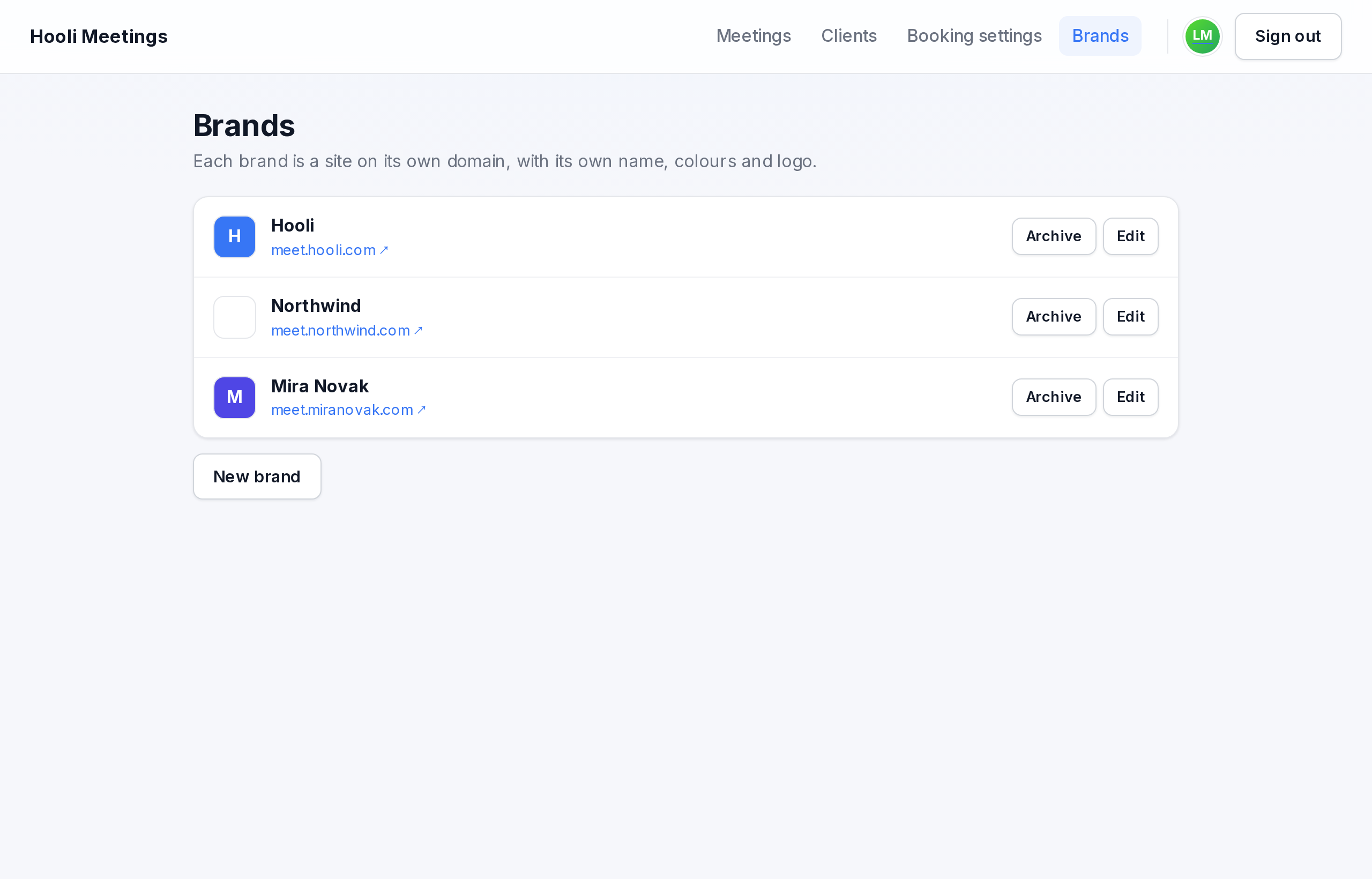
The setup wizard creates the first site. After that, admins manage sites on the Brands page (under Profile); see Adding a site.
config/brands.json
Optional. Sites live in the database; a brands.json file is imported once, at the first start of an empty install, for example to set up several sites in one go. After that the file is ignored: change sites on the Brands page.
A JSON array with one object per site. The first is the default.
[
  {
    "key": "example",
    "name": "Example",
    "url": "https://meet.example.com",
    "color": "#2557c9",
    "logo": { "file": "example.png", "width": 400, "height": 96, "wordmark": true },
    "icon": "example-icon.png",
    "senderDomain": null,
    "owner": null
  },
  {
    "key": "other",
    "name": "Other Brand",
    "url": "https://meet.other-brand.example",
    "color": "#0e7490",
    "logo": null,
    "icon": null,
    "senderDomain": "other-brand.example",
    "owner": null
  }
]
| Field | Required | Meaning |
|---|---|---|
key |
yes | Unique id: lowercase letters, digits and dashes. Stored with every record, so don't change it once the site is in use. |
name |
yes | Shown in the header, page titles and emails, e.g. Example Meetings. |
url |
yes | The site's origin, https:// + domain, no path. Must also be in SITES. |
color |
yes | Accent colour, #rrggbb. See colours. |
logo |
no | file next to brands.json, its pixel width and height, and wordmark: true if the logo already shows the name (the header then says just Meetings after it). null shows the name in text. |
icon |
no | Browser tab icon, a file next to brands.json (png, jpg, webp, svg or ico). |
senderDomain |
no | Send invites from <user>@<senderDomain>. See sender addresses. |
noReply |
no | Address such as no-reply@acme.example for automated mail: booking confirmation links, reminders and notices to staff. See sender addresses. |
owner |
no | Email of the only account allowed to use this site, e.g. a personal site. null lets everyone in ALLOWED_DOMAIN sign in. |
Logos and icons are served only if brands.json names them, so nothing else in the folder can be downloaded.
Colours
The colour is used for buttons, links, highlights and the invite email's button. Pick one dark enough for white text on it: a contrast of at least 4.5:1 against white. MeetAlias logs a warning at startup when a colour is lighter than that.
To find a colour from your logo, run the helper from a checkout of the code (PNG and SVG logos):
$ npm run brand-color config/example.png
Colours in config/example.png, most used first:

  "color": "#0f79b5"   too light (3.6:1), darkened from #118dd3
  "color": "#166897"   readable as is

Paste one into the brand in config/brands.json.
Without Node on the machine, run it in a container: docker run --rm -v "$PWD":/w -w /w node:22-alpine node scripts/brand-color.mjs config/example.png.
Sender addresses
By default invites go out from each person's own address. With the Invite sender domain set to other-brand.example (on the Brands page, or senderDomain in brands.json), invites on that site come from alice@other-brand.example instead.
For this, each person needs that address as an alias:
- Google Workspace: a Gmail Send mail as alias (see Google setup). People without it still send fine; Gmail uses their primary address.
- Microsoft 365: an alias of their mailbox, with sending from aliases turned on (see Microsoft setup). If Exchange refuses the alias, MeetAlias sends from the person's own address and warns admins on the meeting list.
On Microsoft 365 this applies to MeetAlias's branded emails only; Exchange's own calendar invitations come from the person's main address.
No-reply address
With the No-reply address set to no-reply@acme.example (noReply in brands.json), automated mail on that site comes from that address, under the site's name (Acme <no-reply@acme.example>):
- the Confirm your booking link to bookers,
- reminders to bookers,
- notices to staff: new booking, rescheduled or cancelled by client, booking paused, and the daily email (which covers all sites, so it uses the first site's address).
Invitations, updates and cancellations still come from the organizer, so clients' replies and calendar Accept/Decline answers reach a person. No Reply-To is set, so replies to automated mail go to the no-reply address.
It's sent through each organizer's mailbox, so every person who takes bookings must be allowed to send as no-reply@…. On Google, add it as a Gmail "Send mail as" alias, set up the same way as above; without it, Gmail quietly uses their own address. On Microsoft 365, an address belongs to one mailbox only, so make no-reply@ a shared mailbox and give those people Send As permission on it; without it, MeetAlias uses their own address and warns admins. Replies to the alias land in the mailbox that owns it, so make no-reply@ a group or user that nobody reads if you want them to vanish.
Adding a site
From the app
Admins open Brands → New brand and enter the name, domain and colour. The brand is saved, but it isn't live yet: it shows the DNS records to create.
| Type | Name | Value |
|---|---|---|
| CNAME | meet.example.com |
the domain the admin is on (a bare domain uses A/AAAA records to the server instead) |
| TXT | _meetings.meet.example.com |
the brand's token, shown on the page |
Verify checks the TXT token and that the domain points at this server. Then Caddy gets the HTTPS certificate on the first visit; the bundled Caddyfile does this with on-demand TLS, and asks the app at /api/domains first, so it never gets certificates for domains nobody verified. Press Verify again: once https://<domain> reaches this install, the brand is live.
Also add https://<domain>/api/auth/callback to the redirect URIs of the Google OAuth client or the Entra app registration. Until a brand is live it can be edited or deleted; afterwards it can only be archived.
From the command line
For operators who'd rather skip the DNS check in the app:
- Point the new domain's DNS at the server.
- Add the domain to
SITESin.env, separated by comma and space, and rundocker compose up -dso Caddy gets its certificate. - Add the site:
docker compose exec app node scripts/add-brand.mjs <key> https://<domain> "<Name>" [#colour], thendocker compose restart app. - Add
https://<domain>/api/auth/callbackto the redirect URIs of the Google OAuth client or the Entra app registration.
People sign in to each site separately; sessions are per domain.
Changing a site
On the Brands page, Edit changes a site's:
- Name and colour;
- Invite sender domain: invites go from you@that-domain, an alias in each person's mailbox (see Sender addresses); empty sends from their own address;
- No-reply address for booking confirmations and reminders; empty sends them like invites;
- Owner, which makes it a personal site;
- Logo: PNG, JPEG or WebP. Tick The logo already shows the name for a wordmark, so the header doesn't repeat the name.
Removing a site
Archive on the Brands page. An archived site takes no new bookings, and new meetings go on the default site; its meetings, clients and history stay. A site that isn't live yet (still waiting for DNS) can be deleted instead.
Personal sites
A site with an owner is open to that one account; everyone else is told it's private. Its meetings and clients are kept apart from the company sites inside MeetAlias.
Note
It's the same Google or Microsoft account and calendar, so Workspace or Microsoft 365 admins can still see those events there.