User guide
This part is for team members who use MeetAlias every day: creating meetings, keeping client records and running booking pages.
Signing in
Open your team's MeetAlias address (for example https://meet.example.com) and choose Sign in with Google or Sign in with Microsoft, whichever your team uses. Use your company account; other accounts are refused.
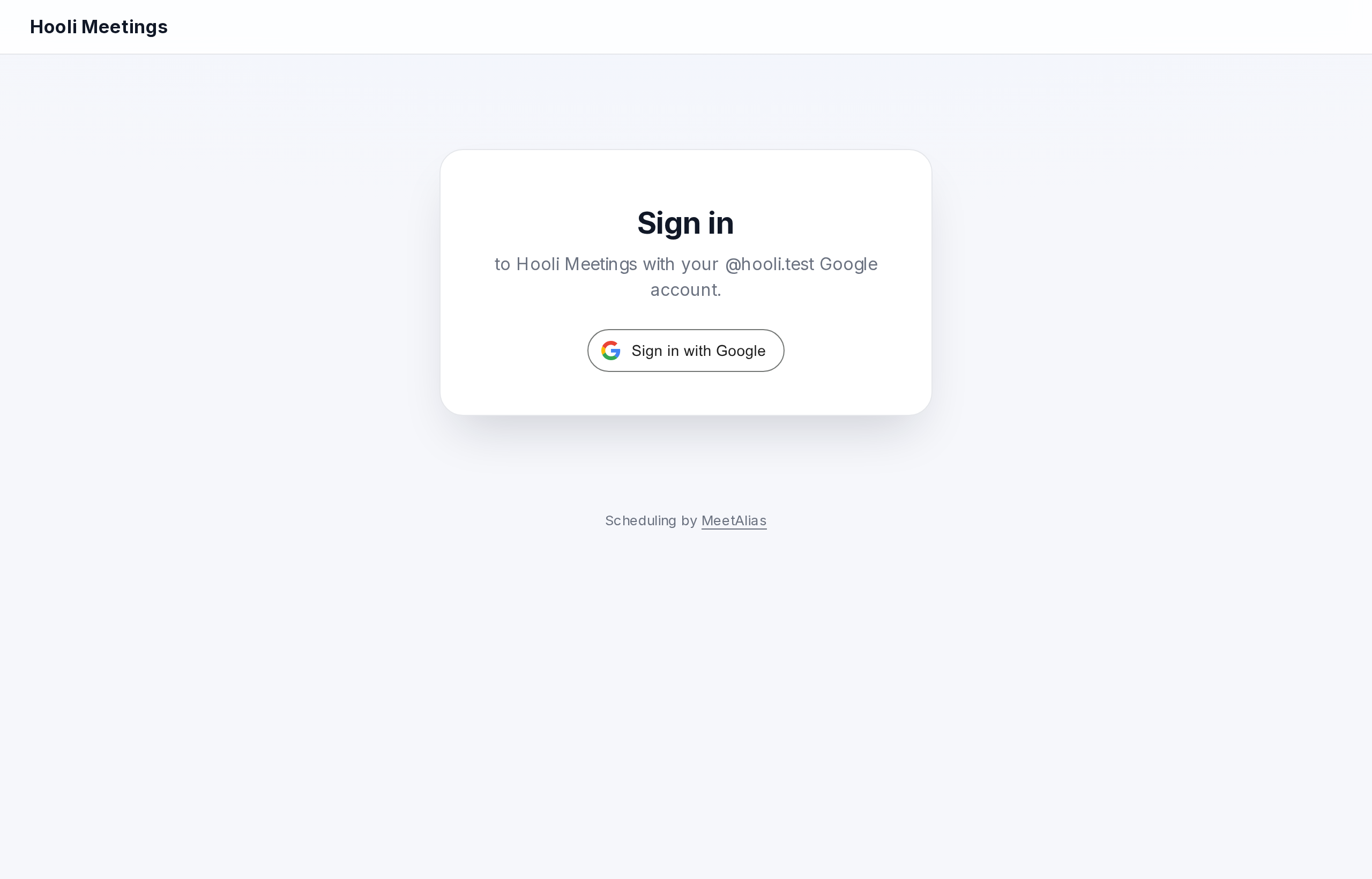
The first time, Google asks you to allow MeetAlias to do the following. On Microsoft 365 your admin has usually agreed for everyone already, so you aren't asked.
| Permission | Why |
|---|---|
| See and edit events in your calendars | Create, move and cancel the meetings you make in MeetAlias, with their Meet or Teams links. |
| See your free/busy times | Leave out busy times on your booking pages. On Google it sees when you're busy, not what the events are. On Microsoft 365 this is part of the calendar permission, which can also read event details. |
| Send email on your behalf | Send branded invites from your own address, so replies come straight to you. MeetAlias can't read your email. |
MeetAlias keeps this access while you're offline, so clients can book you and changes made in Google Calendar or Outlook are picked up at any time.
Several sites
Your team may run several sites from one MeetAlias (for example one per company brand). Each site has its own address, clients, meetings and booking pages, and you sign in to each one separately. Your calendar is shared between them, so a meeting booked on one site blocks that time on the others.
Signing out
Use Sign out at the top right. Your session also ends by itself after 7 days without using MeetAlias. An admin can sign you out on every device, for example if a laptop is lost (see Profile → Team access).
Finding your way around
| Menu | What's there |
|---|---|
| Meetings | Your next meeting, counts for today and the coming week, and the list of upcoming and past meetings. New meeting and Instant meeting are at the top. |
| Clients | Companies, their contacts and their meeting history. |
| Booking settings | Your booking page, weekly hours and meeting types. |
| Your photo (top right) | Your profile: photo, name, timezone, daily email. |
On a phone, the menu is a bar at the bottom of the screen; see On your phone.
Admins
Admins see everyone's meetings, not just their own, can filter the meeting list by employee, and can sign team members out on every device. The person who set up MeetAlias is the first admin; admins make others admin under Profile → Team access.
When Google or Microsoft access breaks
If you revoke MeetAlias's access in your Google or Microsoft account, or it expires, a red bar appears at the top of every page with a Sign in again link. Until you do, MeetAlias can't create meetings, send invites, show your free times to bookers or pick up changes from your calendar.
On Microsoft 365, if the bar says the Microsoft client secret has expired, signing in again doesn't help: an admin has to renew it.