Meetings
Creating a meeting
Choose New meeting at the top of the meetings list and fill in the form. It has four parts:
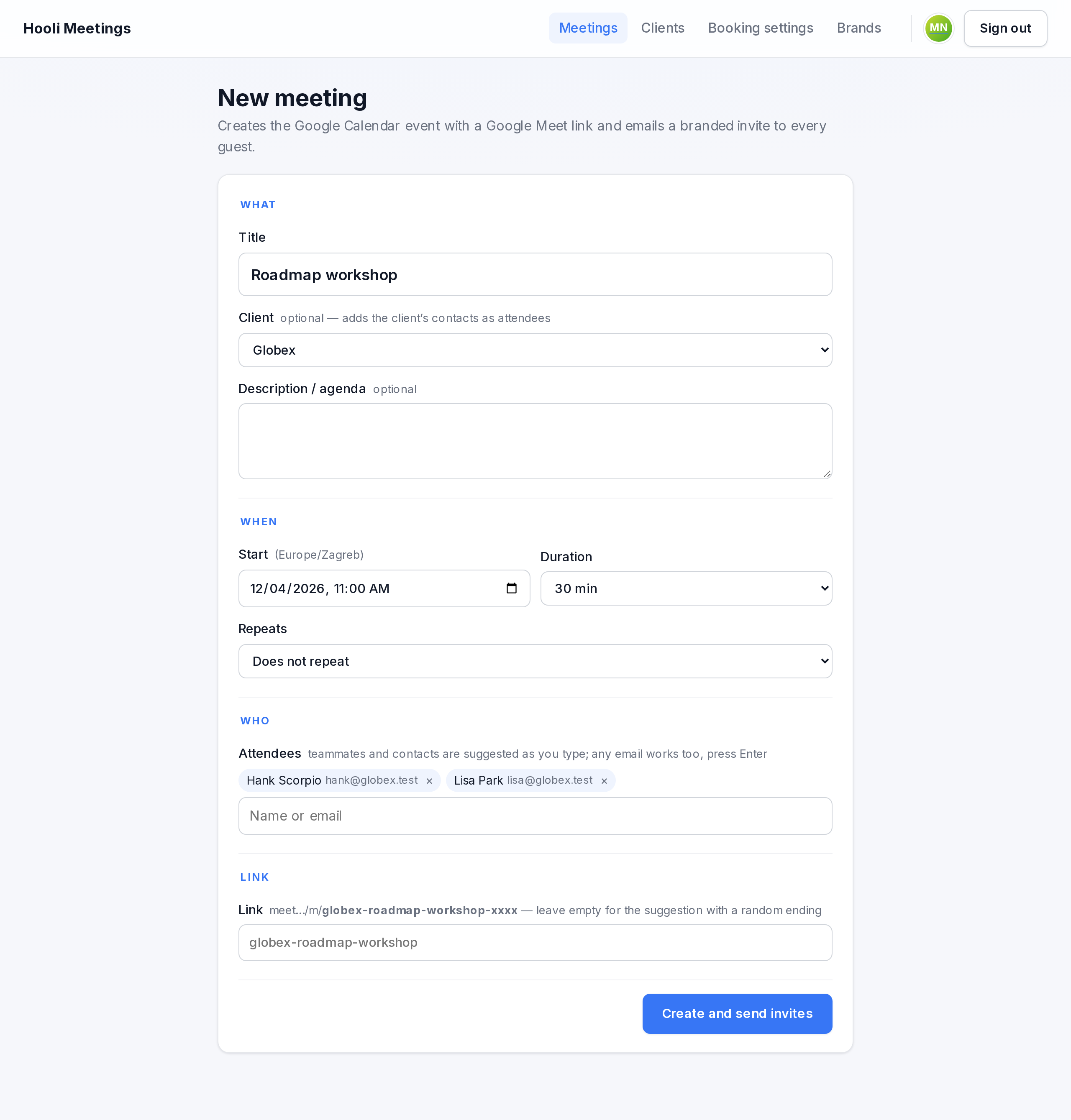
- What
- Title, an optional Client, and an optional description or agenda. Choosing a client adds its contacts as attendees.
- When
- Start (in your own timezone, shown next to the label), Duration (15 minutes to 2 hours) and Repeats (see recurring meetings).
- Who
- Attendees. Start typing and MeetAlias suggests colleagues and client contacts; any other email address works too. Press Enter or type a comma to add it. Remove someone with the × on their name.
- Link
- The meeting's vanity link. Leave it empty for a suggestion.
Then choose Create and send invites. MeetAlias:
- creates the event in your calendar with a video link and everyone on the guest list: a Google Meet link in Google Calendar (Meet then lets guests in without waiting to be admitted), or a Teams link in Outlook;
- sends each attendee a branded invite from your Gmail or Outlook, with the meeting link;
- opens the meeting's page.
On Google Workspace the branded invite carries a calendar file (.ics) that works in any calendar app, and Google's own invitation emails are switched off, so nobody gets two invites. On Microsoft 365, Exchange sends its own Outlook invitation, which puts the meeting in attendees' calendars, and the branded invite comes as a separate email without a calendar file. See Emails.
Internal meetings
Leave Client empty for team meetings. They work the same way and simply don't appear in any client's history.
Starting from something
The New meeting page can start pre-filled:
- From a client: New meeting with … on a client's page fills in the client and its contacts.
- From an earlier meeting: Duplicate on a meeting's page copies everything except the time.
- From a template: templates are listed under Start from: at the top of the form.
To make a template, open a meeting and choose Save as template, then give it a name such as Weekly status. Templates keep the title, description, duration, client and attendees, and are shared with everyone on the site. Remove one with the × next to its name.
Instant meetings
For a call right now, choose Instant meeting on the meetings list, then Start now. You get a meeting from now for 30 minutes, with no guests, and its link is copied for you to share. Your calendar shows you busy until it ends; End now on the meeting's page frees it early.
The link is random, such as /m/now-3f9a1c…, so nobody can guess their way into the call. To use a link of your own, such as /m/quick-chat, type it under Link first. Anyone who knows or guesses that link can join. Each link belongs to one meeting: to use quick-chat again another day, delete the earlier meeting first.
Recurring meetings
Under Repeats, choose Daily, Weekly or Every 2 weeks. Optionally set Number of meetings; leave it empty for a series without an end.
A series is one event in your calendar and has one link for every occurrence, so attendees can bookmark it. The meeting list shows the next occurrence.
Note
Changes to a single occurrence made directly in Google Calendar or Outlook stay there; MeetAlias tracks the series as a whole.
The meeting link
Every meeting gets a short, readable link on your site, like https://meet.example.com/m/acme-weekly-sync. Opening it goes straight to the Google Meet or Teams meeting. This is the link in the invites; share it in chat or on a slide.
- MeetAlias suggests a link from the client and title plus a short random ending, which makes links hard to guess.
- If you type your own, it's kept exactly as you typed it, as long as nobody uses it yet. Short obvious links are easier to guess, so the random ending is the safer default.
- Links of cancelled meetings show a friendly "this meeting was cancelled" page instead of the video call.
Copy the link with Copy link on the meeting's page, or on the Next up card on the Meetings page.
The meetings list
Meetings shows:
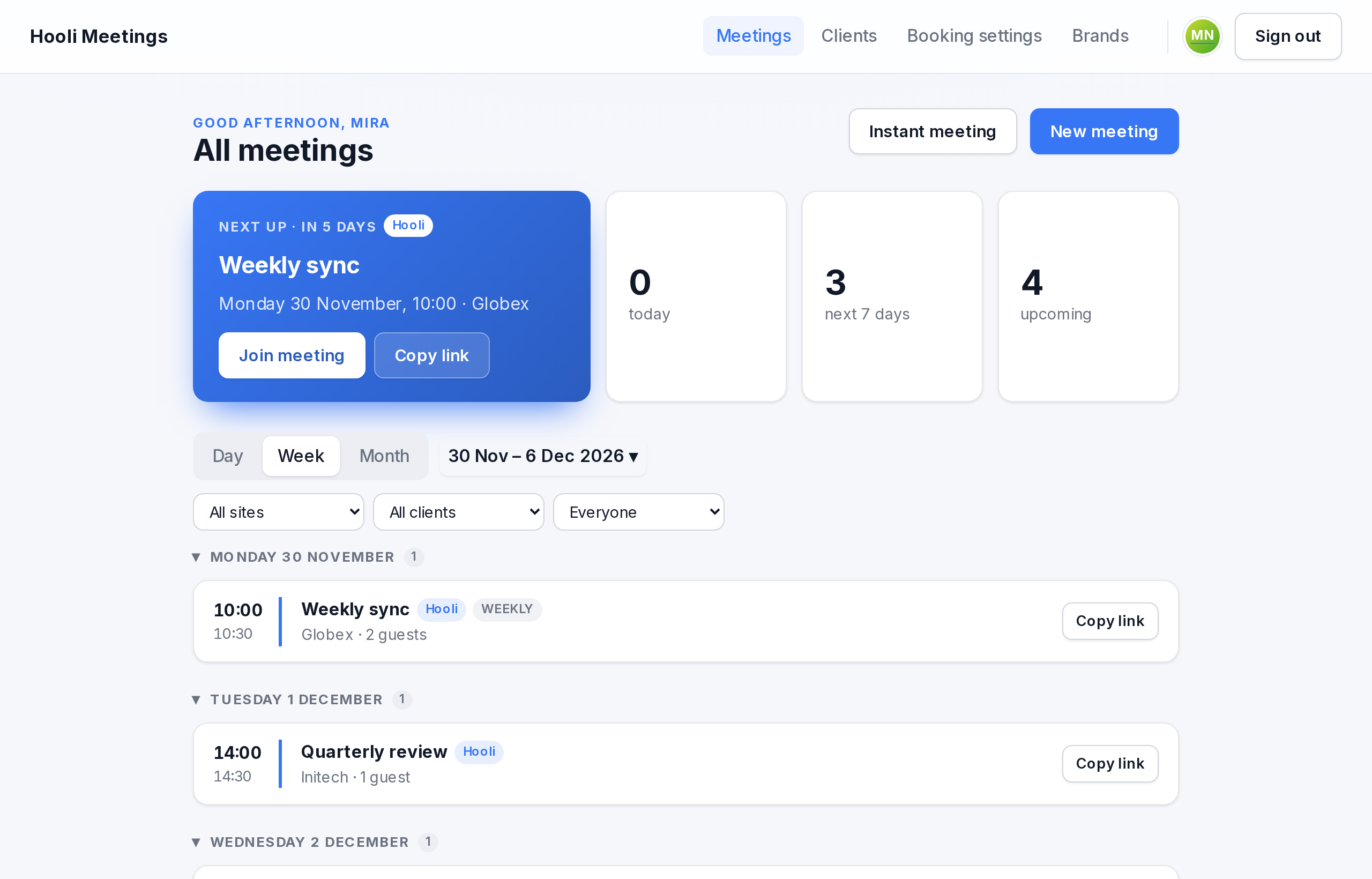
- Next up: your next meeting, with Join meeting and Copy link.
- Counts of meetings today, in the next 7 days, and upcoming in total, always counted from now.
- The meetings of one Day, Week (Monday to Sunday) or Month, grouped by day. Click the period (for example 23 – 29 November 2026 ▾) to pick another day, week or month from a small calendar; Today brings you back. Your choice of Day, Week or Month is remembered in this browser. A repeating meeting shows on each day it happens.
- Click a day's heading to fold or unfold it. Days already past start folded. Today's meetings that are over move to a folded Earlier today section above Today: click it to see them. Meetings that are over are shown faded.
- Filters by client and, if your team runs several sites, by site. Admins can also filter by employee.
Each meeting shows its time, title, client and number of guests, and its status:
| Status | Meaning |
|---|---|
| (none) | Scheduled as planned. |
| Rescheduled | The time was changed after the invites went out. |
| Cancelled | Cancelled in MeetAlias, by the client, or deleted in Google Calendar or Outlook. Shown crossed out. |
Events from your calendar
On Google Workspace, the list also shows the other events in your primary Google Calendar: invites from other people, and meetings you made in Google Calendar yourself. They're marked Calendar. This isn't available on Microsoft 365. - MeetAlias doesn't change them. Open in Google Calendar takes you there to change or answer them, and Join opens their video link if they have one. - They count in Next up and the totals. All-day events (holidays, out of office) show as All day at the top of their day, and don't count. - Events you declined aren't shown. Changes in Google Calendar appear within about 10 minutes. - Only you see your calendar events. Admins don't see them when they look at someone else's meetings, and filtering by client hides them. - MeetAlias keeps a copy of your events from 30 days back to 90 days ahead, and deletes it when you're removed from the team.
Changing or cancelling a meeting
Open the meeting. Under Edit or reschedule change anything (title, client, description, time, duration, repetition or attendees) and choose Save and notify attendees. Everyone gets an update, and calendar apps move the existing event instead of adding a second one. On Microsoft 365 the update is Exchange's own Outlook update.
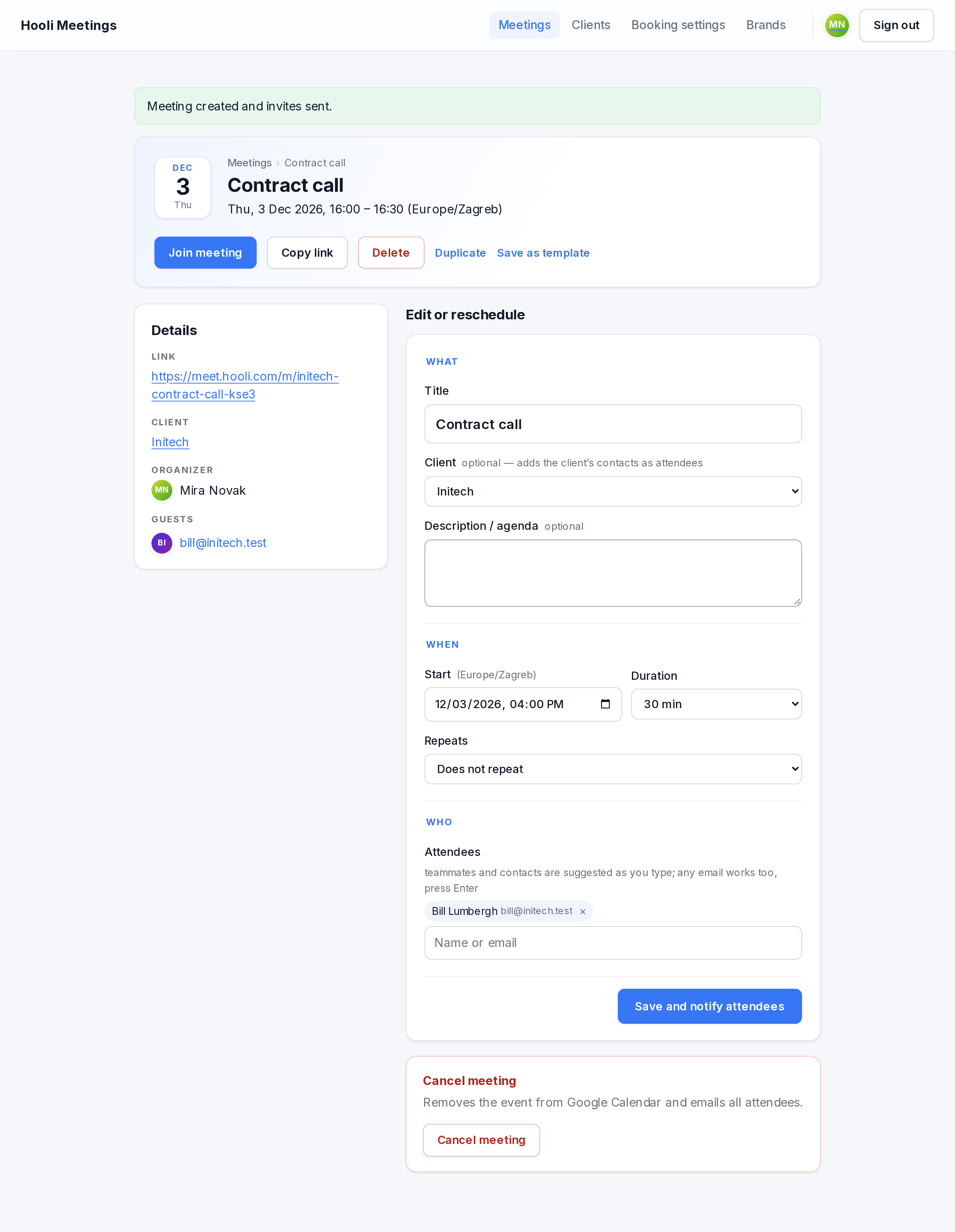
To cancel, use Cancel meeting at the bottom. The event is removed from your calendar and attendees get a cancellation (from Exchange, on Microsoft 365).
Changes made in Google Calendar or Outlook
You can also move or delete a meeting directly in Google Calendar or Outlook. MeetAlias checks your app-made meetings about every 10 minutes and copies over new times and deletions; a deleted event shows as cancelled.
No emails for Calendar changes
Changes picked up from Google Calendar or Outlook don't send MeetAlias's branded emails. To notify attendees, make the change in MeetAlias instead.
MeetAlias only tracks meetings created in MeetAlias; other events in your calendar are never imported.
Meetings booked by clients
Meetings that clients booked on your booking page appear in the same list, titled with the meeting type and the client's name (Intro call: Jane Doe). The client's note, if any, is the description, and the meeting is linked to a client automatically (see how bookings find their client).
The client never sees that title or their own text echoed back: their invite always says Intro call with Your Name. This stops anyone from using your booking page to send their own text through your mailbox. Clients can reschedule or cancel these themselves; you get an email when they do.