Microsoft 365 setup
MeetAlias signs in through an app registration in your company's Entra ID, open only to your own tenant. It uses delegated permissions: it acts as each person who signs in, with their own calendar and mailbox, and never gets access to the whole organization. Member accounts of your tenant can sign in; guest accounts can't.
You need a Global Administrator or Application Administrator for the Entra steps, and the one-time setup link from the install. Everyone who uses MeetAlias needs an Exchange Online mailbox, that is a Microsoft 365 licence that includes Exchange.
Open the setup link and choose Microsoft 365 under Where are your company's email and calendars?. The wizard shows the same steps as below, with the values to copy for your site.
1. Register the app
- Open the Entra admin center → App registrations, signed in with your work account, and choose New registration.
- Name it, for example MeetAlias. This is what people see when they sign in.
- Supported account types: Accounts in this organizational directory only.
- Redirect URI: choose Web and enter
https://<site domain>/api/auth/callback, for examplehttps://meet.example.com/api/auth/callback. The wizard shows the exact address.
For more sites, add each site's address under Authentication → Web → Redirect URIs later:
2. Add the permissions
Under API permissions → Add a permission → Microsoft Graph → Delegated permissions, add:
| Permission | Used for |
|---|---|
openid, email, profile |
Sign-in. |
offline_access |
Keeping access while you're offline, so clients can book you and changes made in Outlook are picked up. |
User.Read |
Name, email address and photo, and checking that the account isn't a guest. |
Calendars.ReadWrite |
Creating, changing and cancelling the events MeetAlias makes, with their Teams links, and reading busy times for booking pages. |
Mail.Send |
Sending MeetAlias's branded emails. Send only: MeetAlias can't read mail. |
Then choose Grant admin consent for your company, so nobody is asked one by one.
3. Create a client secret
Under Certificates & secrets → Client secrets, choose New client secret. Its Value is shown only once, so keep the page open and go straight to the next step.
Note the date in the Expires column too. Entra secrets last at most 2 years; MeetAlias reminds admins before it runs out (see renewing the secret).
4. Paste the details into the wizard
In this order:
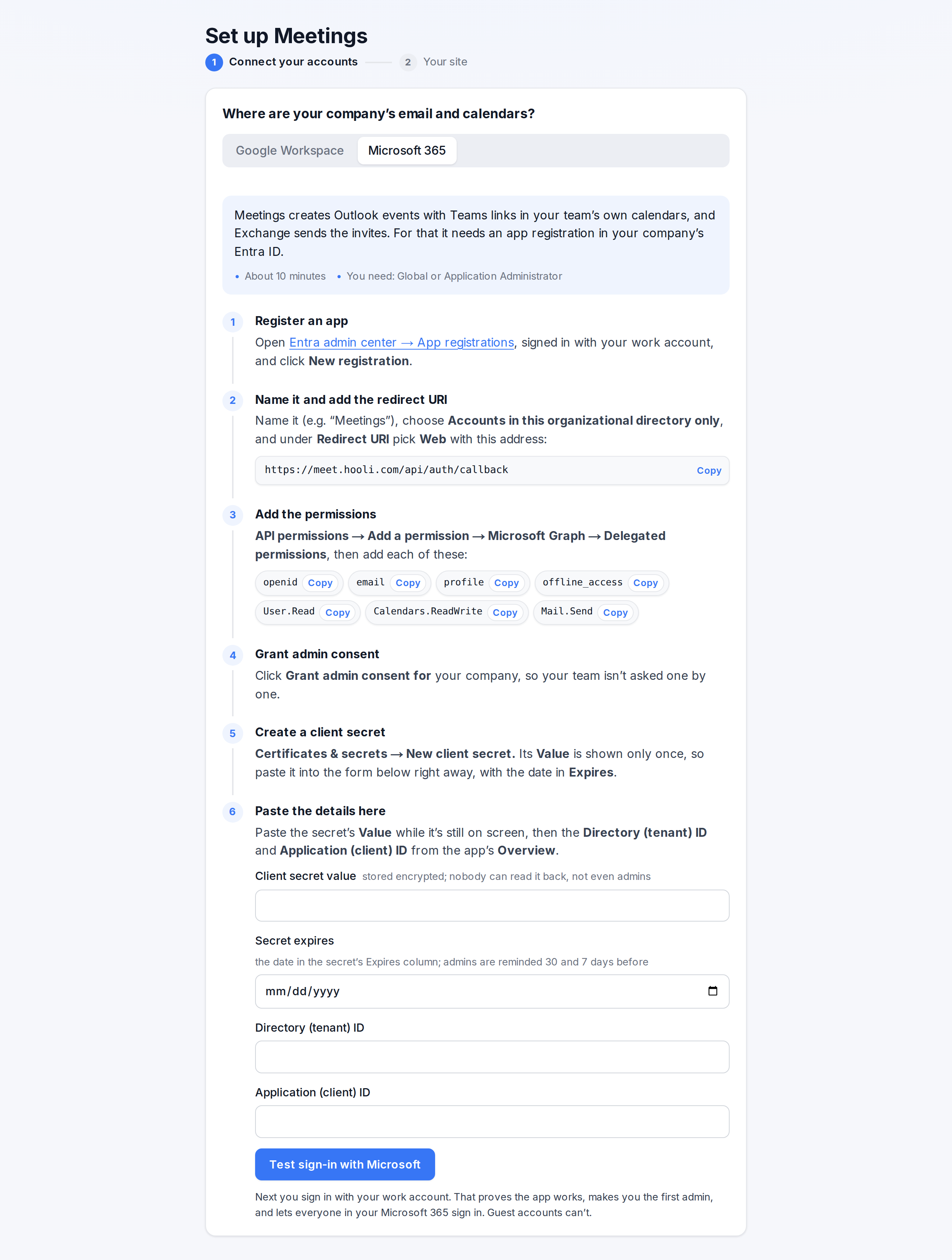
- Client secret value: the secret's Value, while it's still on screen. Not the Secret ID next to it; the wizard tells you if you paste that by mistake.
- Secret expires: the date from the Expires column.
- Directory (tenant) ID and Application (client) ID: both on the app's Overview page.
The secret is stored encrypted in the database. Nobody can read it back, not even admins.
Keep the secret out of files and repositories
Copy the value straight into the wizard. Use a separate app registration for production and for development, so a leaked development secret can't be used against production.
5. Test sign-in
Choose Test sign-in with Microsoft and sign in with your work account. Nothing is saved until this passes. It checks that:
- the account belongs to the tenant whose ID you entered, and isn't a guest;
- every permission above was granted;
- MeetAlias can read your calendar, which needs an Exchange Online mailbox.
If something is wrong, the wizard says what in plain words; see also Troubleshooting. When it passes, you're the first admin and the wizard moves on to your site's name and colour.
Who may sign in
Every member account of your tenant can sign in, whatever its email domain. Guest accounts and personal Microsoft accounts can't. ALLOWED_DOMAIN isn't used on Microsoft 365; the tenant decides. To keep someone out, remove them or block their account in Entra.
Sender addresses for extra brands
If a site should send its emails from another domain (for example you@other-brand.example instead of you@example.com):
- Add that domain to Microsoft 365 as an accepted domain.
- Give each person who uses the site an address on it as an alias of their mailbox.
- Turn on sending from aliases for the organization, in Exchange Online PowerShell:
Set-OrganizationConfig -SendFromAliasEnabled $true. - Set the site's sender domain under Profile → Brands.
This applies to MeetAlias's own branded emails. Exchange's calendar invitations always come from the person's main address.
When Exchange refuses to send from an alias, MeetAlias sends the email from the person's own address instead, so sending never fails, and admins see a warning at the top of the meeting list until an email from that domain goes out from the alias.
Renewing the secret
The client secret expires. Admins see a banner on the meeting list from 30 days before, and a line in their daily email 30 and 7 days before, if they get it.
- In Entra, open the app's Certificates & secrets and create a new client secret.
- In MeetAlias, open Profile → Team access → Microsoft connection.
- Under Renew the secret, enter the new Value and its Expires date, with the same tenant and application IDs, and choose Test sign-in and save.
- Delete the old secret in Entra.
Nothing changes until the test sign-in passes, and nobody else has to sign in again.
Renew it before it expires
Once the secret has expired, nobody can sign in, meetings can't be created or changed, booking pages show no times and sync stops. Only an admin who is still signed in can renew it then. Everyone's banner clears at the next sync, within about 10 minutes of renewing.
A new app registration (a new Application (client) ID) works the same way, but signs everyone else out of Microsoft: they see Sign in again at the top of the page. It must be in the same tenant.
Removing access
- One person: remove them in Profile → Team access. To end their access at Microsoft too, use Revoke sessions on their user in Entra, or block their sign-in.
- Everyone: delete the app registration in Entra. Every stored token stops working at once.