Booking pages
Booking pages let clients book time with you themselves, like Calendly. They pick a free time, enter their details and get an invite; the meeting lands in your calendar (Google or Outlook) and in MeetAlias.
Everything is set up under Booking settings. Your photo, name, headline and timezone, which also appear on booking pages, are in your profile.
How it looks to clients
- Your booking page,
https://meet.example.com/yourname, shows your photo, name and headline, the page title and intro, and your open meeting types. - A meeting type's page,
https://meet.example.com/yourname/intro-call, shows a calendar with the days that have free times. The client picks a day, then a time (shown in their timezone), then fills in their name, email, optional company and an optional note.
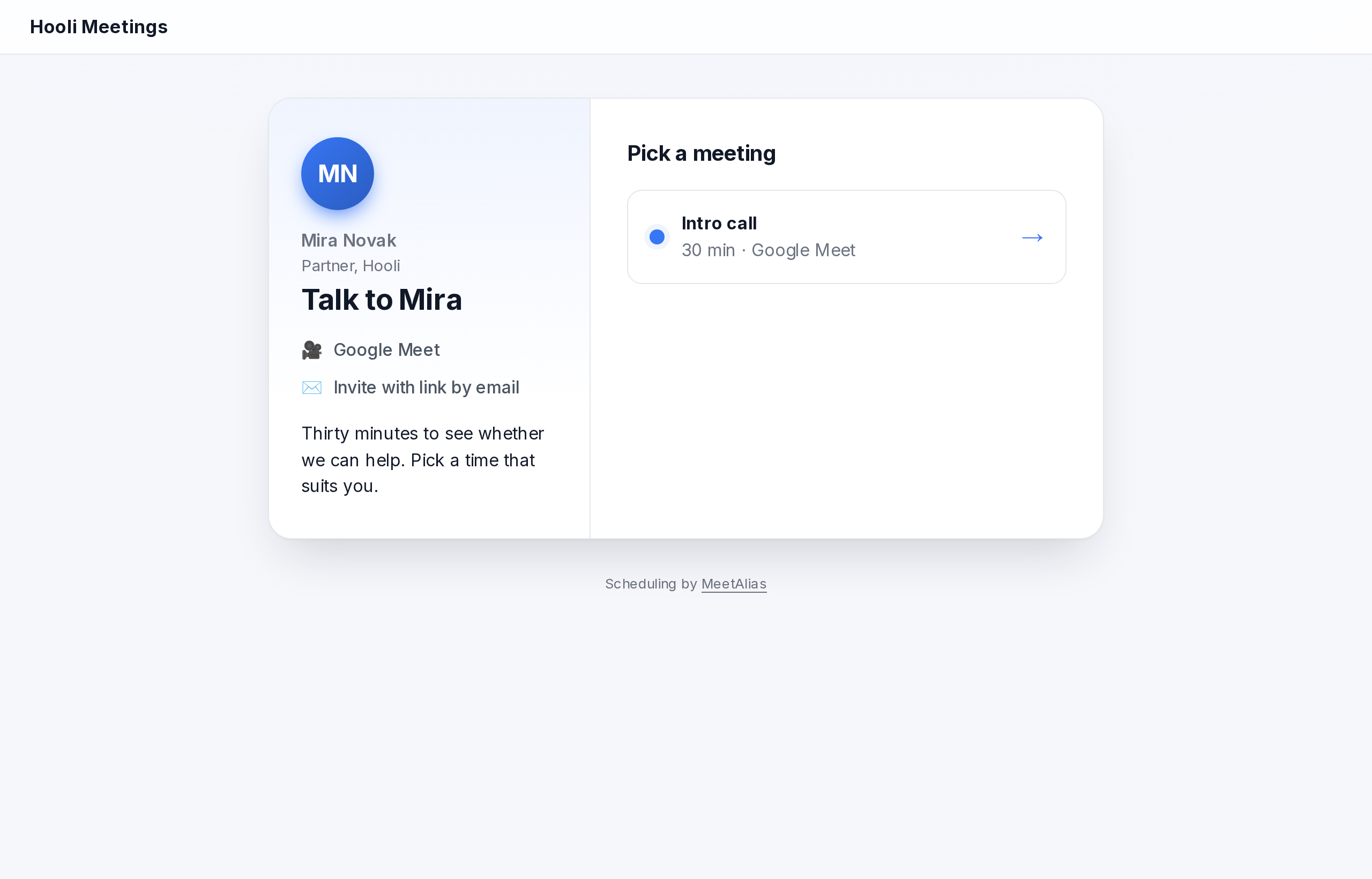
See Booking a meeting for the client's side in detail.
Meeting types
A meeting type is something clients can book, such as a 30 min intro or a 1 hour deep dive. Each one is a row under Meeting types with:
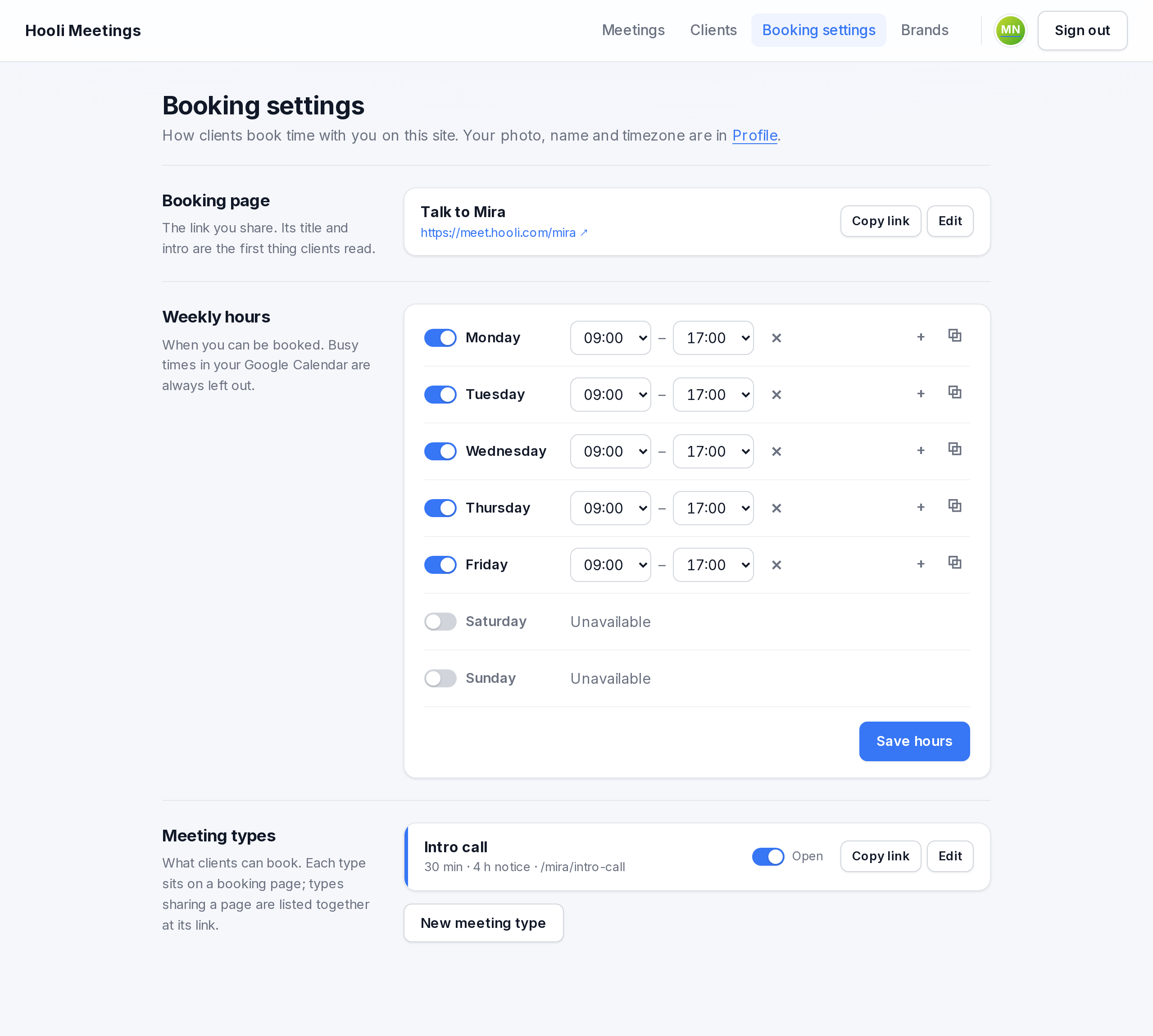
- a coloured bar (grey when paused), its name, a summary like 30 min · 4 h notice and its path,
/yourname/intro-call; - an Open/Paused switch. Paused types disappear from your booking page right away, without being deleted;
- Copy link for its full address, and Edit.
To add one, choose New meeting type:
| Field | What it does |
|---|---|
| Name | Shown to clients, e.g. 30 min intro. |
| Link | The last part of the address. Filled in from the name; change it if you like. |
| Duration | Quick picks of 15, 30, 45 or 60 minutes, or any length from 5 to 600 minutes. |
| Booking page | Which of your booking pages it's on (see more than one page). |
| More options → Buffer | Minutes kept free before and after anything in your calendar. |
| More options → Minimum notice | How soon a booking may start, in hours. 4 means nobody can book something starting within 4 hours. |
| More options → Bookable up to | How many days ahead clients can book. |
Weekly hours
Weekly hours set when you can be booked, in your timezone. The same hours apply to all your meeting types on this site.
- Switch a day on and it gets 09:00–17:00; change the times with the dropdowns (15-minute steps).
- + adds another range on the same day, e.g. a lunch break: 09:00–12:00 and 13:00–17:00.
- × removes a range; switching the day off makes it Unavailable.
- The copy button next to a day copies its hours to all days; switch off the ones you don't want.
- Choose Save hours when you're done.
Free times are your weekly hours minus everything busy in your calendar, including meetings booked on other sites and private events (on Microsoft 365: events shown as busy, tentative or away; free and working elsewhere don't block), minus buffers, the minimum notice and anything beyond Bookable up to. Slots start every 30 minutes, or more often for meetings shorter than 30 minutes.
Your booking page
The Booking page section shows your page's title and address with Copy link. Edit changes:
- Title, shown big on the page; empty means Book a meeting;
- Intro, a few lines under it, e.g. what to expect or how to prepare.
More than one booking page
A booking page is created the first time you add a meeting type to it. To start another, type a new name in Booking page when adding a meeting type, for example yourname-consulting. Each page lists only its own meeting types; hours and busy times are shared.
Page names use lowercase letters, digits and dashes, must be unique on the site, and can't be words the app uses itself such as settings, clients or api.
Built-in protection
Public pages attract bots, so MeetAlias limits what any one visitor can do:
-
Every booking is confirmed by email. The booker gets a link; the meeting is only created, and only reaches your calendar, once they open it and confirm. Until then the time is held for 30 minutes and hidden from others. A late click still books if the time is still free. Each email address can have only one confirmation link waiting at a time.
-
Your booking page takes at most 8 confirmed bookings in any 24 hours (counted per staff member, from everyone together). After that it shows no free times until older bookings drop out of that 24-hour window, and you get one email saying so.
- One booker can have at most 2 future bookings with you at a time, and everyone from one company email domain (say
@acme.com) at most 4 together. Times waiting for confirmation count too. This counts bookings on any future date, not per day; once a meeting is over or cancelled it stops counting. Free email domains such as Gmail don't have the company limit. - These limits apply only to bookings clients make on your booking page. Meetings you create in the app are never limited.
- A visitor can make 10 booking attempts an hour and change bookings 10 times an hour.
- Clients can reschedule the same meeting 3 times; after that they're asked to contact you.
Bookings by clients never put their own text into emails sent from your mailbox.
Bookings waiting for confirmation
They show in My meetings at their time, tagged waiting for confirmation, with the booker's name and email and how long the time is held. Nothing is in your calendar yet.
- Confirm books it for them, for example when they tell you the email never arrived. The invitation goes out as if they had clicked, and the daily limit doesn't apply.
- Discard frees the time. Nobody is emailed.
If you do nothing, the hold expires after 30 minutes and the time is free again.